5 Minutes, Few Steps and OK Google Turn On the Lights
Overview
Want to control your home appliances using Google Assistant? This project enables voice control of lights from anywhere in the world using only a smartphone and an internet connection. The system connects a Bolt WiFi Module to IFTTT's Google Assistant integration, allowing you to turn lights on and off with simple voice commands.
Hardware Components
| Component | Quantity |
|---|---|
| Bolt WiFi Module | 1 |
| LED | 1 |
Software & Online Services
- Bolt Cloud
- IFTTT WebHooks
- IFTTT Google Assistant
Hardware Setup
Step 1: Set Up the Bolt WiFi Module
Set up the Bolt WiFi module to connect to your Bolt Cloud account. Refer to the Bolt documentation for setup procedures.
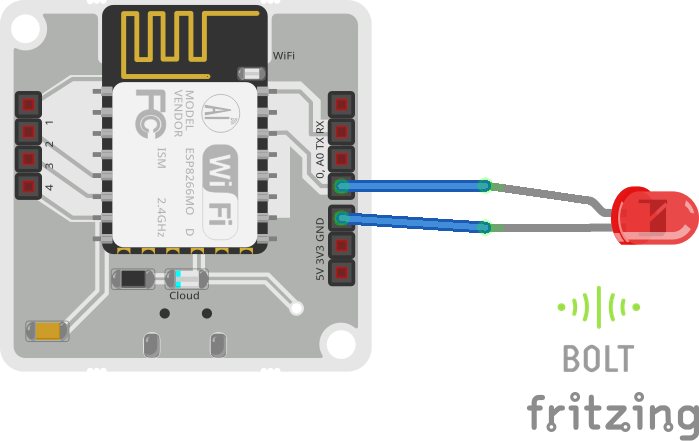
Step 2: Connect the LED
Connect the longer lead (anode) of the LED to Pin 0 of the Bolt module and the shorter lead (cathode) to the GND pin. Power on the module.
Software Programming
Step 1: Obtain API Key and Device ID
- Login to cloud.boltiot.com
- Note your Bolt WiFi Module ID
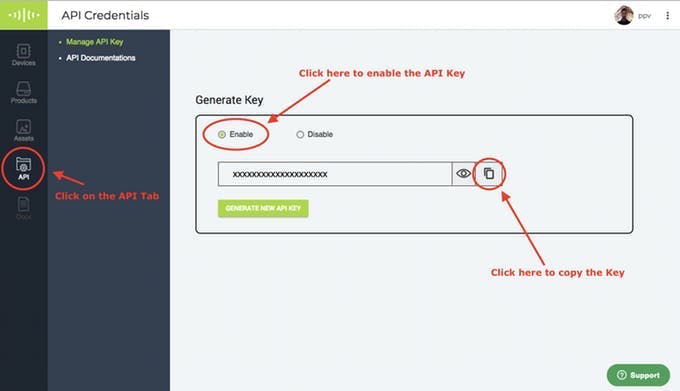
- Click the API Tab, then Generate Key section, and click Enable
- Copy your API key
Step 2: Write GPIO Control Command
The digital write command for turning lights ON:
https://cloud.boltiot.com/remote/YOUR_API_KEY/digitalWrite?pin=0&state=HIGH&deviceName=YOUR_DEVICE_IDThe digital write command for turning lights OFF:
https://cloud.boltiot.com/remote/YOUR_API_KEY/digitalWrite?pin=0&state=LOW&deviceName=YOUR_DEVICE_IDSubstitute your actual API key and device ID into the URLs above. Adjust the pin number if the LED is connected to a different pin.
Step 3: Integrate IFTTT with Google Assistant and Webhooks
- Navigate to IFTTT and create a new applet
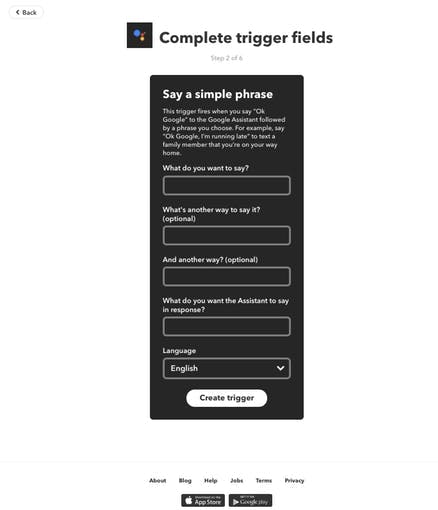
- Click "+This" and select Google Assistant, then choose "Say Specific Phrase"
- Enter your trigger phrases (e.g., "Turn the office lights on", "Turn on the office lights", "Turn on the lights in office")
- Click "Create Trigger"
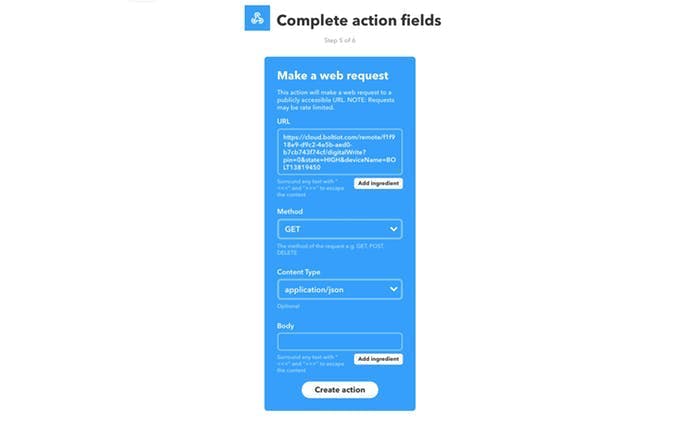
- Click "+That" and select Webhooks, then choose "Make a web request"
- Enter the ON API URL from Step 2
- Set Method to GET
- Set Content Type to Application/json
- Click "Create Action" then "Finish"
Repeat the process for the OFF command, using the OFF URL with state=LOW.
Conclusion
You can now control your lights by saying "OK Google" followed by your configured phrase. The Google Assistant triggers an IFTTT webhook that sends the GPIO command to the Bolt Cloud, which in turn switches the LED on or off. This project can be extended to control any appliance by using a relay module instead of a simple LED.