Foot-Fall Counter with the Bolt Cloud PRO

Overview
Organizing an event and need to track attendance but lack dedicated personnel? This project leverages the Bolt Cloud PRO platform to automate footfall counting, eliminating the need for manual tracking. The system uses a proximity sensor connected to a Bolt WiFi Module to detect people entering through a doorway, and sends a nightly SMS with the total count.
Hardware Components
| Component | Quantity |
|---|---|
| Bolt WiFi Module | 1 |
| Proximity Sensor | 1 |
| Connecting Bridge Pin Cables | As needed |
| Micro USB Cable | 1 |
| Standard USB Wall Charger | 1 |
| Computer with Internet Access | 1 |
Software & Online Services
- Bolt Cloud Platform
- DigitalOcean (optional, for continuous operation)
Hardware Setup
Step 1: Circuit Connection
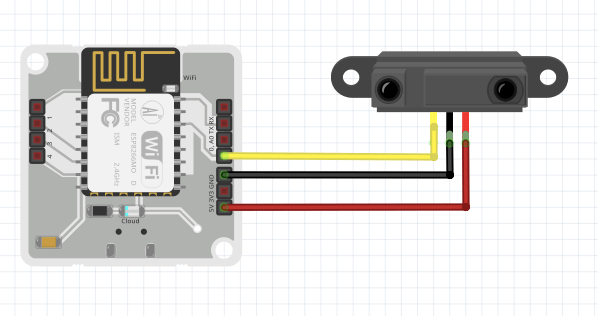
- Connect sensor output pin to Bolt GPIO pin 0
- Connect sensor GND pin to Bolt GND pin
- Connect sensor VCC pin to Bolt 5V pin
- Power the module using the wall charger and micro USB cable
Step 2: Sensor Placement
Position the sensor outside the entry door to detect person entry. Test by walking through the doorway to verify sensor activation.
Step 3: Bolt Module Cloud Connection
Refer to the Bolt documentation for cloud connectivity setup procedures.
Step 4: Create Cloud Product
Create a GPIO input-type product on the Bolt Cloud platform.
Step 5: Hardware Configuration
Configure the product to monitor GPIO 0 pin with "TRIGGER" as the data collection rate.
Step 6: Device Linking
Link your device to the created product and deploy configurations.
Software Setup
Step 1: Twilio Account Setup
Establish a Twilio account and retrieve your SID, AUTH_TOKEN, and FROM_NUMBER credentials for SMS notifications.
Step 2: System Requirements
You need a Linux computer with internet connectivity and Python capability, or alternatively, a DigitalOcean droplet.
Install the required packages:
sudo apt-get install cron
sudo apt-get install python3.6
pip install boltiot
Step 3: Code Implementation
Create a file named footfall.py:
from boltiot import Sms
import requests
import json, datetime

SID = 'You can find SID in your Twilio Dashboard'
AUTH_TOKEN = 'You can find on your Twilio Dashboard'
FROM_NUMBER = 'This is the no. generated by Twilio. You can find this on your Twilio Dashboard'
TO_NUMBER = 'This is your number. Make sure you are adding +91 in beginning'
API_KEY = 'This is your Bolt Cloud accout API key'
DEVICE_ID = 'This is the ID of your Bolt device'

sms = Sms(SID, AUTH_TOKEN, TO_NUMBER, FROM_NUMBER)

print("Pulling data from the Bolt Cloud.")
response=requests.get("https://cloud.boltiot.com/remote/%s/fetchData?deviceName=%s" % (API_KEY, DEVICE_ID))
response_data = json.loads(response.text)
data = response_data["data"]
count = 0
today = str(datetime.date.today())

print("Going through the data.")
for count_entry in data:
    if not str(count_entry[0]).startswith(today):
        continue
    if count_entry[1] != "1":
        continue
    count = count + 1

print("Today's footfall is %s." % str(count))
print("Sending update via SMS.")
sms.send_sms("The footfall for today is %s." % str(count))
print("All done.")
Replace the placeholder strings with your actual credentials from the Twilio console and Bolt Cloud dashboard.
Step 4: Testing
Execute the code:
python footfall.pyStep 5: Automation
Set up daily execution at 23:55 using cron:
{ crontab -l; echo "55 23 * * * /usr/bin/python $(pwd)/footfall.py"; } | crontab -Conclusion
The automated system delivers nightly SMS notifications at 11:55 PM displaying the total daily visitor count, eliminating manual attendance tracking for events. This project demonstrates how the Bolt Cloud PRO platform can be used for real-world automation tasks with minimal hardware.